Curious case of button tag

Software Engineer
In the world of CSS and JavaScript, a dev can make any HTML tag to look and behave like anything. We developers take pride on this a lot but we forget about accessibility.
In this blog we will go through the correct implementation of button.
Problems

Can you identify from the above image which button is actually using the html tag button?
For the end-users, it won't make any difference as all looks like button but the down side is accesibility won't work. Let's get into the code of the above:
<section>
        <button class="submitButton">Click Here</button>
        <p class="submitButton">Click Here</p>
        <a class="submitButton" href="#">Click Here</a>
        <span class="submitButton">Click Here</span>
        <div class="submitButton">Click Here</div>
</section>
You can see the power of CSS and JavaScript we are able to make span, a, div to look like button. Can we fix accessibility? Yes, we can.
Button usecases
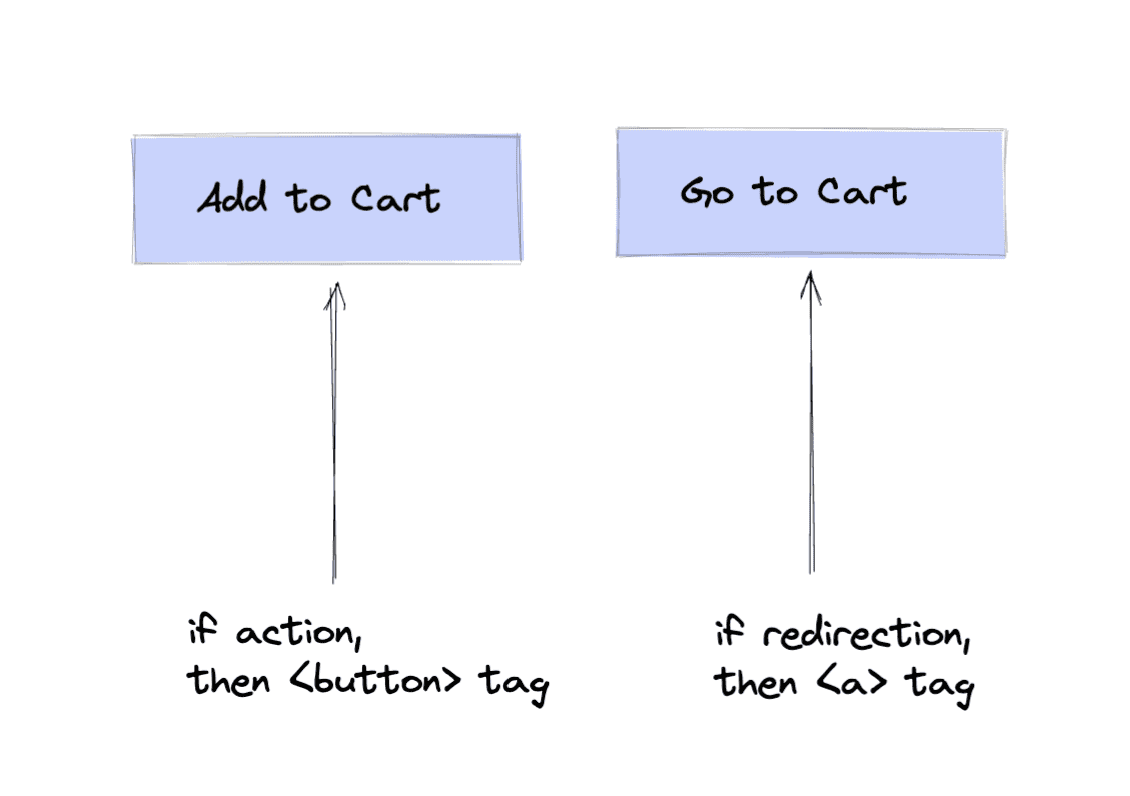
Now, which will use to make this?
<a href="#" onClick="">Add to Cart</a>

<button onClick="">Add to Cart</button>
Now, let's get ourselves into the button world. Use button whenever there is an action not the redirection. Eg: submitting a form, adding an item to cart, cancelling a popover etc.
To understand the button vs a the above use-case is only you need to understand.
Button and its autonomy
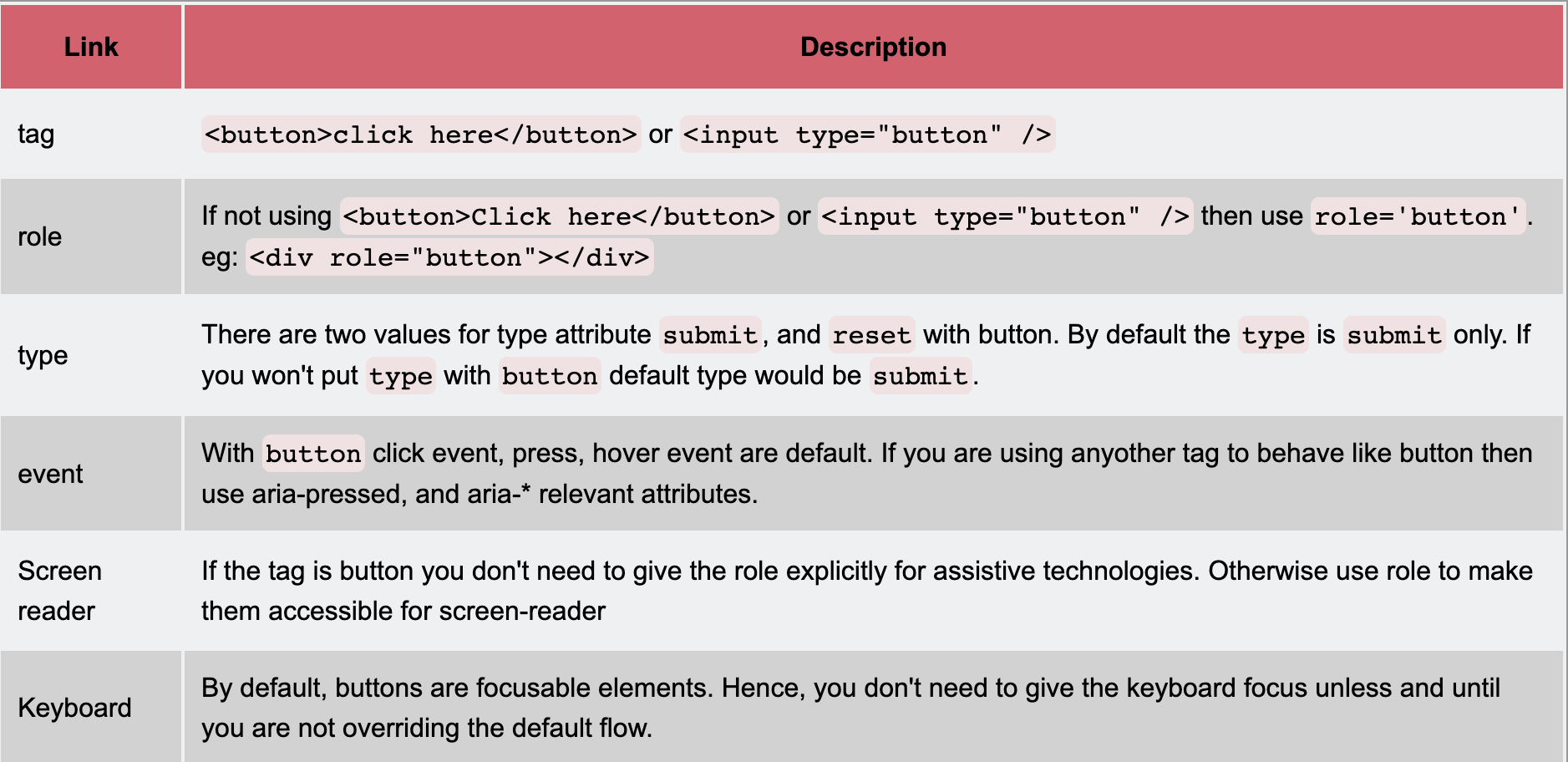
If a button contains an image element, make sure to set its alt attribute. If it contains an icon, use aria-label to describe the icon instead.
Fixing the accessibility Always remember the use-case of button. Button supports accessibility out of the box. Eg: you don't need to worry about keyboard focus, screen readers, etc.
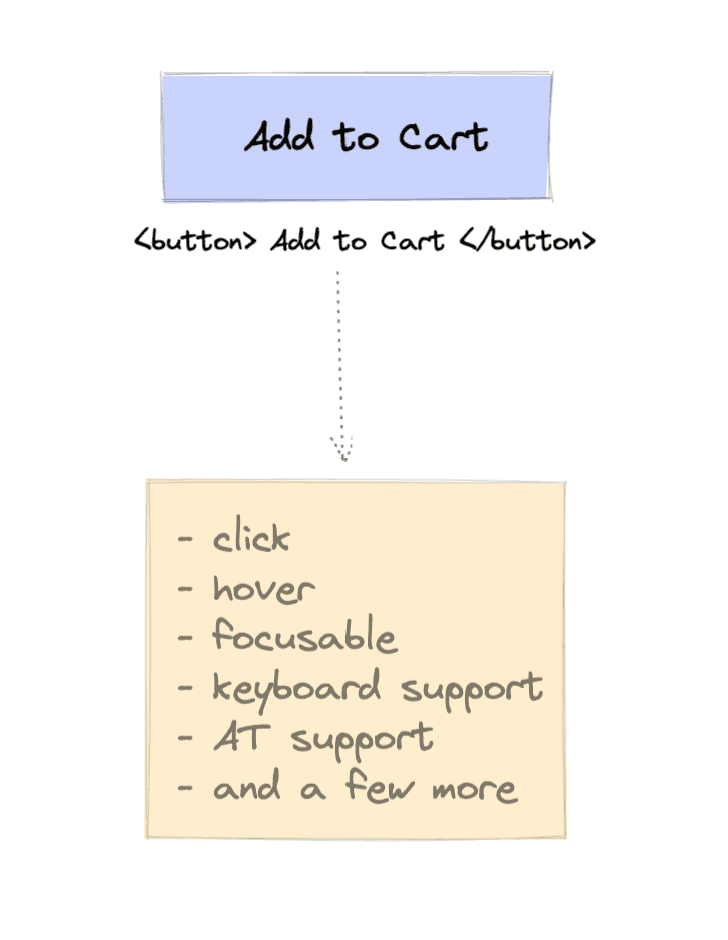
If you have a situation where you need to use anyother tag such as div, `span' or any then you have suport accessibility and write extra code to make them work like button and support accessibility.
So, a div to work as button this is how your code would look
<div role="button" tabindex="1" id="btn" class="submitButton">Click Here</div>
Buttons and Images
If you are using an image as button plese provide an alt tag otherwise screen readers won't be able to understand what button it is. (Remember screen readers cannot see).
<button><img src="date.png" alt="click here"/></button>
Buttons with text tags If you are wrapping any text tag with button tag screen readers won't pick the text-element. They will consider it as button only
<button><h1>Click here</h1></button>
PS: Here I am not encourgaing to use non-semantic tags. Here I am encouarging you to fix your code for accessibility. Always remeber, use Semantic code first. If you can't then put the fixes to make it accessible.
Summary:
1-Always use semantic tag button.
2-Use button where an action is happening and a tag where any redirection is happening.
3-Use role to make non-semantic tags to work like button for assistive technologies.
4-Use events, keyboard support (focus), aria-* etc. to make non-semantic tags accessible for the assistive tools.
Hope you enjoy reading. see you soon!